Buying a Used Connected Car: Transfer App Access and Remove the Previous Owner
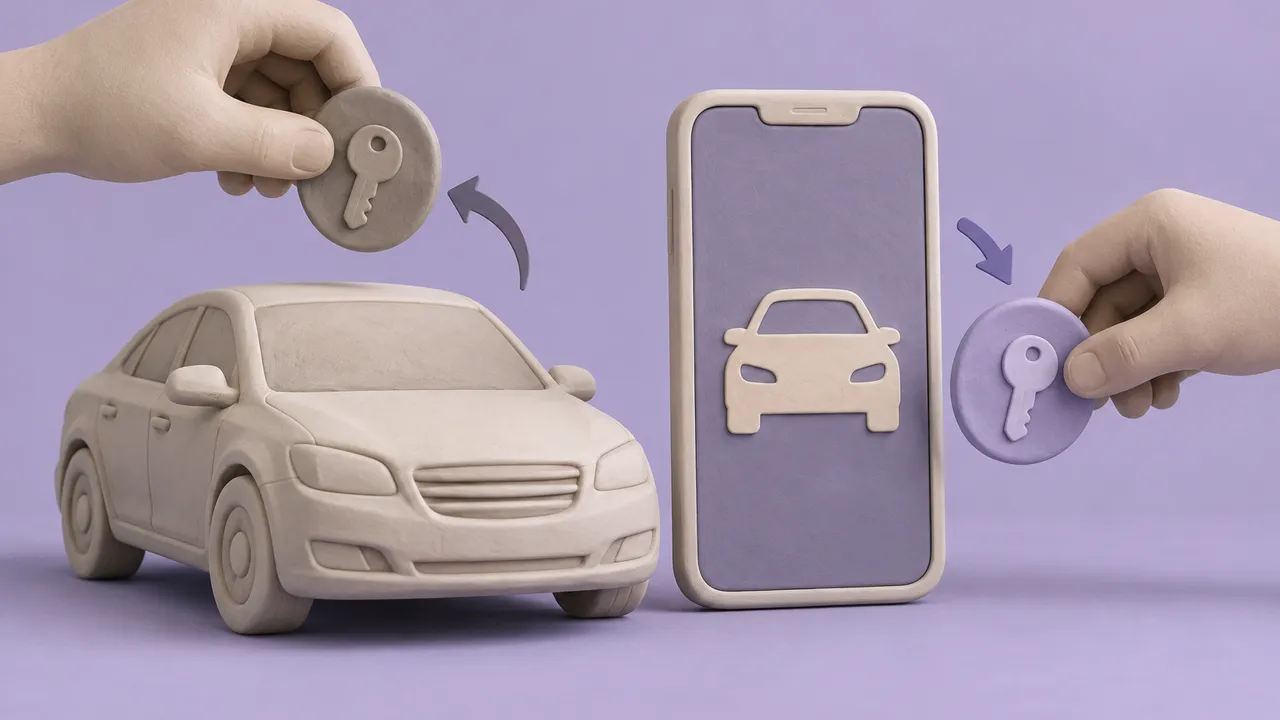
Buying a used connected car means taking control of more than the ignition key. Depending on the vehicle and active services, an account holder may be able to locate it, unlock it or send remote commands. A clean cabin and a factory-reset screen do not prove that access has ended. The handoff must cover both accounts managed online and credentials stored in the vehicle.
As of October 2026, there is no universal digital title-transfer process across automakers. Treat the handoff as part of the sale, not a project for later. Before paying, establish who will remove the old account, what evidence the manufacturer needs and which connected features will remain available.
1. Confirm who can release the vehicle
Start with the VIN, not an app-store search. On the automaker’s official US owner or connected-services website, check whether that model year and equipment support remote services or digital keys. Compatibility can depend on hardware, cellular-network support and software; a connected badge does not guarantee that every advertised function still works.
Ask the seller to demonstrate the current account and explain how the vehicle will be removed. If a dealer obtained the car through auction or trade-in, request a documented ownership-release process. A dealer saying it reset the radio is not enough. Keep account passwords out of sales paperwork.
Before submitting ownership documents, confirm the manufacturer’s secure upload channel and required fields. Ask which unrelated personal details you may redact without delaying verification.
- Collect every physical key, fob and key card listed in the sale.
- Ask whether anyone received shared app access or a phone-based digital key.
- Save the VIN, bill of sale and manufacturer support case number, if opened.
2. Transfer the account, then verify remote access
Create your own manufacturer account using your own email address and a unique password; enable multifactor authentication where offered. Do not inherit the seller’s login. Depending on the brand, enrollment may require confirmation inside the car, documents proving ownership, help from support or a visit to an authorized dealer.
Have the seller remove the vehicle from their account through the manufacturer’s prescribed transfer procedure. Deleting the app from their phone is not sufficient. Ask support whether the process also revokes other authorized users and existing remote permissions. Some systems may temporarily show both parties’ access while verification is pending.
Ask whether the vehicle must be online to finish enrollment or receive permission changes. If it is parked underground, move somewhere with reliable cellular reception.
- Confirm your account is recognized as the vehicle’s owner or primary user.
- Verify former owners and invited drivers no longer retain remote-control or location access.
- Record unresolved access issues and get the dealer’s promised remedy in writing.
3. Erase digital keys and local personal data
Treat digital keys separately from app access. A phone or watch may have a driving key stored in its wallet, and shared keys can follow a different revocation process. Use the owner’s manual or official support instructions to remove old digital keys and pair yours. Keep a working physical key available throughout.
Then perform the recommended ownership reset, understanding that local deletion may not affect cloud accounts. Clear paired phones, contacts, messages, driver profiles, Wi-Fi credentials, saved home and work addresses, navigation history, browser logins and garage-door controls. Check dashcam storage or removable media where fitted. Do not assume a reset removes every item; inspect the relevant menus afterward. For missing physical keys, ask an authorized service department about deleting their authorization; that may require a separate service appointment.
If an aftermarket tracker or alarm is fitted, identify its provider and transfer or cancel that account separately; the automaker’s reset will not manage it.
4. Separate included features from paid subscriptions
An active feature during a test drive is not proof that it comes with the car. Trials, prepaid plans, downloadable features and promotional benefits may be tied to the original owner, the VIN or separate contract terms. Ask the manufacturer to confirm your specific vehicle’s entitlements before assigning them value.
Use this inventory to distinguish ownership access from billing. Remove the seller’s payment details and linked third-party accounts; add yours only after reviewing renewal terms. Satellite radio, streaming, charging and toll services may require separate transfers or new accounts. Never assume the seller’s remaining prepaid term will follow the vehicle.
Request a written renewal quote showing taxes, required bundles and cancellation deadlines. Check whether a desired function requires a broader package rather than an individual subscription.
| Service | What to verify |
|---|---|
| Remote app features | Eligibility, trial expiration and renewal price |
| Navigation or data | Separate plan, coverage and update eligibility |
| Purchased software features | VIN attachment and resale-transfer terms |
| Charging or entertainment | Account linkage, credits and billing responsibility |
5. Test the handoff before calling it complete
With the car parked safely, test the functions your model supports: account status, location reporting, remote locking and your newly enrolled digital key. Use remote start only outdoors in a safe location. Successful commands from your phone prove your access works, not that the seller’s access has been revoked.
Recheck authorized users, enrolled keys and subscriptions after any transfer delay the manufacturer specifies. If former-owner access persists, contact connected-services support promptly and notify the selling dealer. Request temporary restriction of affected remote services where possible. Avoid pulling telematics fuses or disconnecting safety equipment, which can disable emergency assistance without resolving account ownership.
Test every supplied fob or key card individually, with other keys out of detection range. Confirm the manual’s backup entry procedure before relying solely on your phone.
- Ask support to confirm revocation when the vehicle cannot display all authorized users.
- Keep screenshots of your account status and written confirmation of the completed transfer.
- Review privacy settings for location sharing, driving analytics and optional data collection.
Transfer rules, availability and prices vary; verify the VIN-specific requirements with official manufacturer and service-provider sources before relying on any feature.
AI Assistance Used — AI assistance was used in researching and drafting this article. It was reviewed, edited, and fact-checked by Leah Fornier before publication.