Why One USB-C Cable Charges Your Laptop and Another Does Not
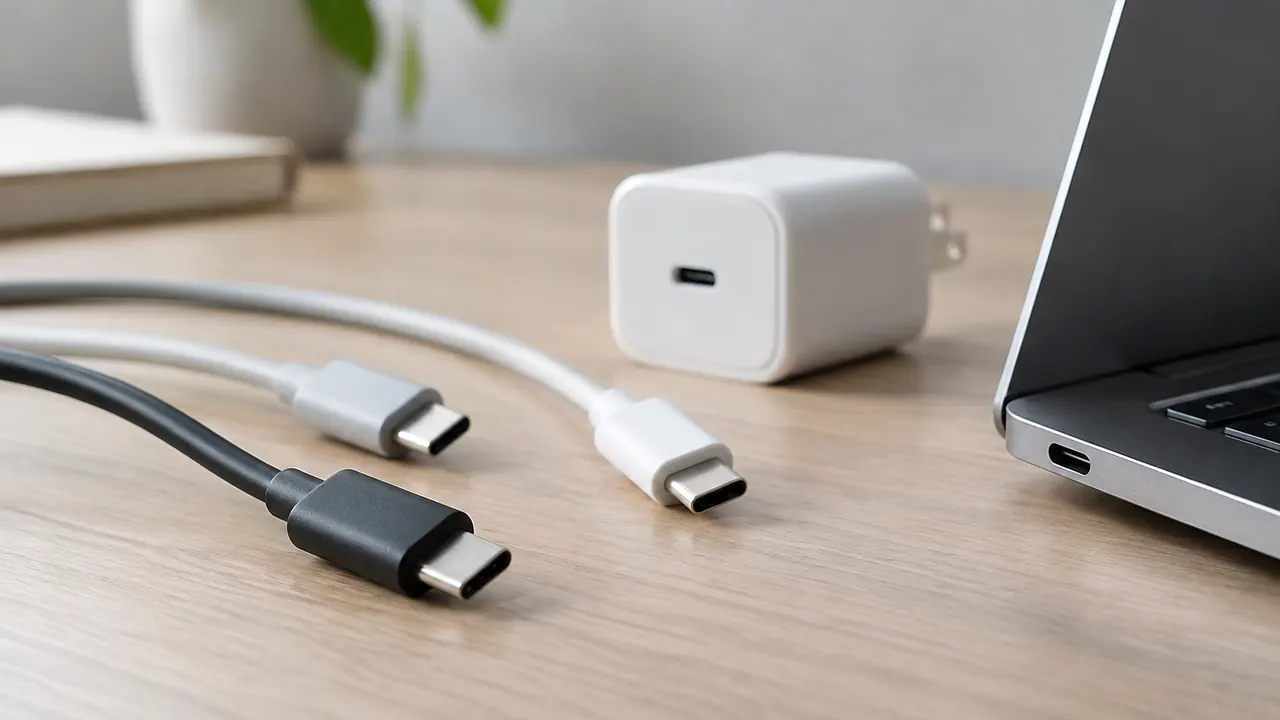
Two cables fit the same laptop port. One charges the battery while you work; the other produces a slow-charger warning, or nothing happens. That does not necessarily mean either cable is broken. USB-C describes a connector shape, not a guaranteed package of charging, data and display features. Cables that look nearly identical can contain different wiring and electronics, and the devices connected to them determine which capabilities are available.
In 2026, shopping by the words “USB-C” alone is still not enough. A reliable setup depends on the laptop’s input requirements, the charger’s output profiles, the cable’s power rating and, when involved, the dock’s limits. The good news: you do not need the highest specification everywhere. You need compatible capabilities along the particular path carrying power, files or video.
1. The plug fits, but the capabilities may not
Think of USB-C as the entrance, not the inventory. A port can support charging, data, video or some combination. On certain laptops, only designated USB-C ports accept power. A desktop’s USB-C port may supply power to accessories without accepting power itself. A cable can support substantial charging power while transferring files at ordinary USB 2.0 speeds. None of those combinations is inherently defective.
Power, data and display specifications answer different questions. USB Power Delivery, usually shortened to USB PD, governs supported power negotiation. USB 2.0, USB 3.2 and USB4 describe data capabilities, with different speeds available. DisplayPort Alt Mode and appropriate USB4 or Thunderbolt implementations can carry display traffic. Do not infer one feature from another: a high-wattage cable is not automatically a monitor cable, and a fast cable cannot add video output to a laptop port that lacks it.
- For charging, check the supported wattage and USB PD requirements.
- For storage, check the cable’s stated data speed and both devices’ ports.
- For a monitor, check the laptop’s video support and the entire display connection.
- For a dock, check all three capabilities, plus operating-system compatibility.
2. Charging works only when the whole chain agrees
With USB PD, the charger advertises available power profiles and the laptop requests a supported option. The cable constrains what that connection can safely carry. A higher-rated charger does not force its maximum wattage into the computer; a compliant setup negotiates power. But a charger labeled with a large total wattage may not provide the voltage and current your laptop needs from the particular port you choose.
Check the laptop manual or original adapter for its expected USB-C input. Many everyday laptops work well within 45 to 65 watts, while performance models may need considerably more. A lower-power source might charge slowly, work only while the machine sleeps, or allow the battery to drain during heavy use. Some laptops reject unsuitable sources. Others reserve full performance for their original adapter or a manufacturer-specific charging arrangement.
Start with the manufacturer’s recommended adapter rating, not the smallest wattage that makes a charging icon appear. If the laptop specifies 65 watts over USB PD, choose a charger that can deliver the required profile on one port, then use a cable rated to carry it. Matching the original adapter’s wattage is a starting point, not proof of compatibility.
3. Read cable watts separately from cable speed
For standard USB PD charging, a 3-amp cable supports up to 60 watts at 20 volts. Above 3 amps, the cable needs a 5-amp rating and electronic identification, commonly called an e-marker. Older 100-watt cables support up to 20 volts at 5 amps. Charging beyond 100 watts requires compatible Extended Power Range equipment and an EPR cable; current 240-watt cables are designed for that higher-voltage category.
These are ceilings, not promises of what your laptop will receive. A 240-watt cable cannot turn a 65-watt charger into a stronger one. It also need not have fast data wiring. For a charging-only purchase, a clearly specified 60-watt or 240-watt USB-C-to-USB-C cable is often easier to evaluate than a listing filled with broad claims. A sound 100-watt cable you already own remains useful within its supported range.
- Buy a 5-amp cable for a standard 65-watt laptop charging setup.
- Look for an explicit power rating, not simply “fast charging.”
- Do not treat an e-marker alone as proof of every premium feature.
| Cable specification | Power capability | What it does not establish |
|---|---|---|
| 3A / 60W USB-C | Up to 60W with compatible equipment | Fast data or display support |
| 5A / 100W USB-C | Up to 100W with compatible equipment | EPR charging above 100W |
| EPR / 240W USB-C | Up to 240W with compatible EPR equipment | USB4 speeds or video support |
| USB4 40Gbps cable | Check its separate power rating | That either connected device supports 40Gbps |
4. A powerful charger can still be the wrong charger
Read the output label or specification sheet by port. A charger sold as “100W” might deliver that amount from one USB-C port when used alone, then split its capacity when a phone is connected. Some ports have lower individual limits. Manufacturers often publish allocation diagrams showing which combinations reduce laptop power. Those diagrams matter more than the largest number on the box.
Also distinguish USB PD from proprietary phone charging. An adapter that reaches a high advertised wattage with one phone may supply much less to a laptop using standard USB PD. PPS, or Programmable Power Supply, is useful for compatible devices but is not a universal laptop requirement. Buy it when your equipment calls for it, rather than assuming the acronym guarantees better charging.
For a desk setup, a single-port charger with sufficient output can be simpler than a shared charger. For travel, a multiport model makes sense if its simultaneous-output table covers your laptop and accessories together. A little headroom can accommodate shared loads, but buying far more wattage will not speed up a laptop beyond its own charging limit. Check whether a suitable cable is included before comparing prices.
5. Docks have their own power and display limits
A dock introduces another negotiation and another power budget. “100W PD input” often means the dock accepts up to 100 watts, not that it delivers all of that to the laptop. The dock needs power for its circuitry and connected accessories. Look for a separate host-charging or laptop-delivery figure. Some powered docks include an adapter; many small hubs require you to supply one.
Display support is equally specific. A USB-C dock using DisplayPort Alt Mode needs compatible video output from the laptop. Available bandwidth, lane allocation, resolution, refresh rate and the number of displays all affect the result. A pair of HDMI sockets does not guarantee two independent extended desktops on every computer. Check the dock maker’s compatibility notes for your exact laptop and operating system.
Thunderbolt or USB4 docks can be worthwhile for supported computers and demanding peripherals, but their headline features are not automatically available through every USB-C port. Some offer reduced functionality on other hosts. Docks using USB graphics technology such as DisplayLink take a different approach and may require software. Verify those requirements before treating one as a drop-in substitute.
| Dock listing says | Verify before buying |
|---|---|
| 100W PD input | Actual wattage delivered to the laptop |
| Dual-monitor support | Extended-display support on your laptop and OS |
| 4K output | Refresh rate and simultaneous-display limits |
| Thunderbolt or USB4 | Host compatibility and required upstream cable |
6. Troubleshoot one connection at a time
Before replacing everything, bypass the dock. Connect the laptop directly to a known-compatible USB PD charger with a suitably rated cable, using a port documented to accept charging. Disconnect other devices from a multiport charger. This isolates several common causes without requiring a meter or another expensive accessory.
Next, change only one component per test. Compare charging while the laptop is idle and under its normal workload; a battery percentage that stalls during demanding work can indicate insufficient available power. Charging may also pause because of battery-health settings, temperature limits or a nearly full battery. Check the operating system’s battery information and the manufacturer’s guidance before deciding the cable has failed.
- If one cable works and another does not, compare their power ratings and inspect for damage.
- If direct charging works but the dock does not, check host power delivery and its upstream cable.
- If charging works but video does not, investigate display support rather than buying more watts.
- Stop using a connection that smells burnt, sparks or becomes unusually hot; seek qualified service.
7. Buy for the job, then label what you own
Make a short equipment list before shopping: laptop model, recommended charging power, available port capabilities, monitor resolution and refresh rate, and any fast external drives. Match products against that list rather than buying the most elaborate cable. A charging cable can be inexpensive without being inadequate; the missing feature may be high-speed data you never intended to use.
Choose reputable sellers with clear specifications and return policies. USB-IF certification and applicable certified logos can help identify tested capabilities, but vague “USB certified” language is not enough. Read the listing for the exact model and length you are purchasing, because variants can differ. Keep the supplied dock cable when the maker specifies it. Once you have a working setup, label spare cables with their power and data ratings. That small step prevents the same guessing game on your next trip.
- Charging only: prioritize the required USB PD power rating.
- Fast storage: pay for speed your computer and drive can actually use.
- Dock and monitors: prioritize documented end-to-end compatibility, not just connector shape.
Check current manufacturer specifications, compatibility lists, prices and return terms before buying, since similarly named models and product revisions can differ.
AI Assistance Used — AI assistance was used in researching and drafting this article. It was reviewed, edited, and fact-checked by Leah Fornier before publication.