When Tech Support Asks to Control Your Computer
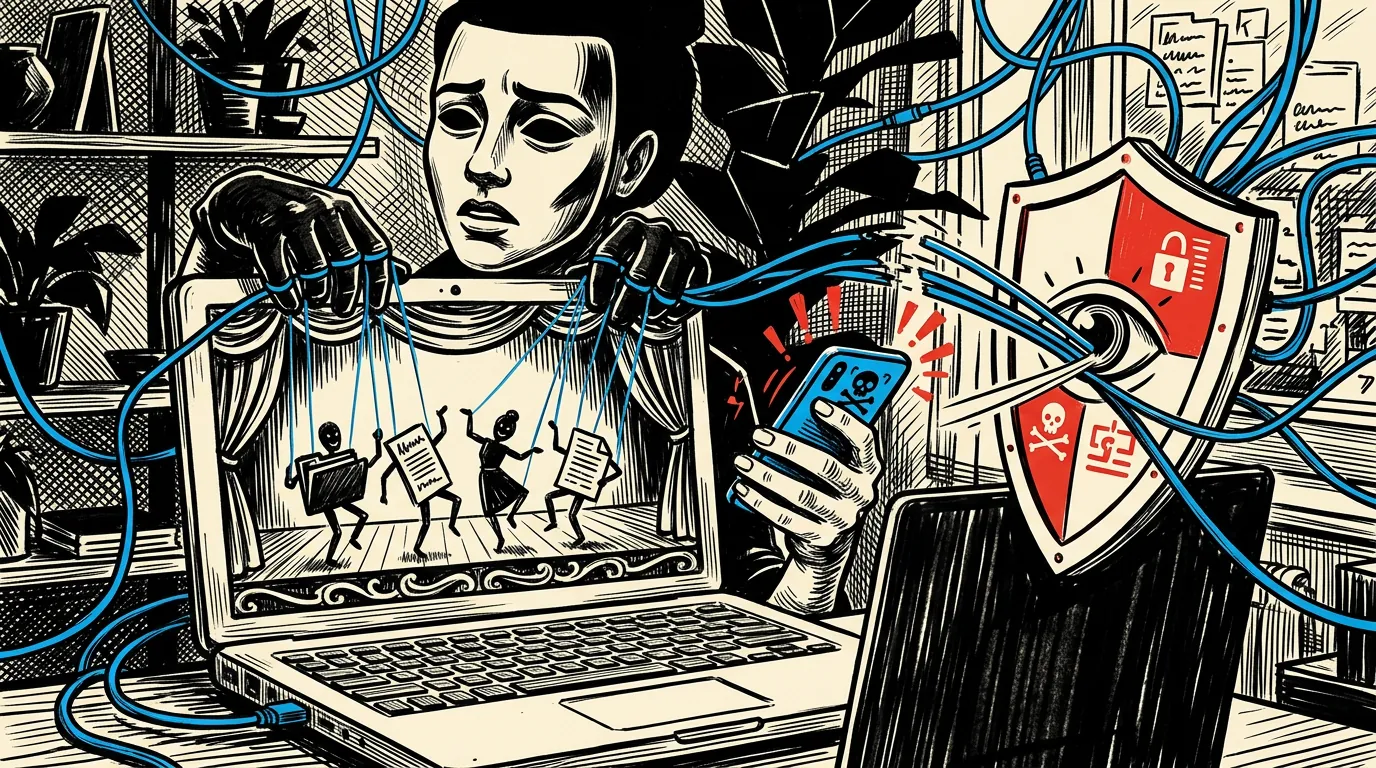
The warning can arrive while you are reading the news: a loud alarm, a frozen-looking browser and a message claiming your computer is infected. Or someone calls, identifies themselves as technical support and says your device is sending dangerous errors. The proposed solution sounds helpful: install a support tool, read out a code and let a technician fix the problem. That handoff is where a frightening interruption can become access to your files, accounts and money.
Remote support is a legitimate service, but an unexpected request for control deserves a stop, not a click. In 2026, scammers can combine familiar-looking software, polished impersonations and stolen personal details to make an approach convincing. You do not need to decide whether the person sounds trustworthy. You need an independent way to verify the request—and, if access already happened, a plan that treats the computer as potentially exposed.
1. How a fake emergency becomes a remote session
An unsolicited caller may claim to represent your computer maker, internet provider, security software company or workplace help desk. A web page may imitate an operating-system warning and insist that closing it will destroy files. Neither a caller’s display name nor a logo establishes identity. A browser message claiming to have scanned your whole computer is not reliable evidence of infection, and the phone number inside that warning is not a safe support channel.
The scammer’s immediate goal is often to move you from a message they control into a live conversation they control. They may ask you to download a remote-access app, approve screen sharing or enter a session code. Once connected, they can present ordinary system logs as proof of an emergency. Some then charge for unnecessary repairs; others steer you toward banking sites, steal information or arrange access that survives the original session.
- Urgency is the lever: claims that you must act immediately discourage independent verification.
- Secrecy is another warning: a legitimate repair should not require hiding the session from your bank or family.
- Payment demands involving gift cards, cryptocurrency or moving money to a supposedly safe account signal fraud.
2. Understand what you are being asked to authorize
Not every support connection grants the same powers. Screen sharing may expose whatever appears on your display; remote control may also let someone click, type, open files and change settings. Additional permissions can allow file transfers, administrative changes or unattended access. The details depend on the software and the permissions you approve. A familiar app name does not make the person operating it legitimate.
Read each permission prompt instead of following spoken instructions automatically. Ask what the technician needs to do, why that permission is necessary and how you will end access. An unexpected instruction to disable security software or approve a new administrator account is reason to stop. Legitimate support should explain the task and respect your refusal, although some genuine repairs do require elevated permissions. Do not disclose passwords or one-time login codes to a technician.
- Close email, medical records, tax documents and password managers before any verified support session.
- Never open a banking or investment account to demonstrate a supposed computer problem.
- Ask whether the tool installs a background service or permits later connections without your approval.
| Request | What it can expose | Safer response |
|---|---|---|
| View your screen | Visible messages, documents and codes | Verify support first; close sensitive windows |
| Control mouse and keyboard | Files, settings and signed-in accounts | Authorize only a verified, understood task |
| Approve administrator access | System-wide changes | Require a clear explanation before approving |
| Enable unattended access | Future connections without a fresh invitation | Decline unless independently verified and necessary |
3. Verify through a channel you choose
The safest verification process starts by ending the incoming interaction. Hang up, or leave the alarming page without calling its number. If the browser will not close normally, use your operating system’s app-closing controls. If necessary, restart the computer and avoid restoring the suspicious tab. A page that traps your cursor or plays an alarm is trying to command attention; those effects alone do not prove the device is compromised.
Then contact the organization independently. Use an established app, a bookmarked account portal, contact information on a bill or a website address you already know. Avoid sponsored search results and numbers copied from the warning. For a workplace device, use your employer’s published internal help-desk channel. Ask whether there is an actual support case and whether remote access is needed. A case number supplied by the caller is only a claim until the real organization confirms it.
- Explain that you received an unexpected request; do not simply ask to resume the caller’s session.
- Verify the support provider and any outside contractor before downloading anything.
- Start a fresh session through the verified channel rather than reusing the stranger’s link or code.
- If you cannot confirm the request, leave access off. Waiting is safer than obeying an unverified deadline.
4. If you granted access, disconnect and preserve the basics
If a stranger currently has control, stop the connection first. Disconnect the computer from the internet by turning off Wi-Fi and unplugging any Ethernet cable. If you cannot do that promptly, shut it down. Do not stay connected while debating with the caller or trying to identify every change. Disconnecting interrupts a typical internet-based remote session, but it does not reverse actions already taken or remove software that could reconnect later.
Use a different, trusted phone or computer for the next steps. If money is moving, contact the financial institution immediately; evidence collection can wait. Otherwise, briefly record what happened while it is fresh. Do not reconnect the affected device just to retrieve a receipt. For an employer-owned computer, notify IT immediately and follow its incident procedures before uninstalling tools, running cleanup utilities or wiping anything.
- Save caller numbers, messages, payment receipts, website addresses and the approximate session time.
- Record the remote-access app’s name and any permissions you remember granting.
- Photograph visible warnings or transaction details with another device if doing so is safe.
- Tell other household users not to reconnect or use the computer until it has been assessed.
5. Protect money and accounts from a clean device
Assume anything visible during the session could have been seen or captured. If the person opened your browser, email or password manager, the exposure may extend beyond what you remember watching. From a trusted device, prioritize your primary email, financial accounts and any account whose password or recovery information was displayed. Change reused passwords everywhere they were used, starting with the most sensitive accounts.
A password change alone may not end every existing login. Use account security settings to sign out other sessions, remove unfamiliar devices and review recovery phone numbers and email addresses. Check email forwarding rules, filters and connected apps for changes. Turn on multifactor authentication; use a passkey or security key where supported. If you approved an unexpected login prompt or disclosed a one-time code, tell the affected provider explicitly.
- Call your bank or card issuer using its official app, statement or the number on your card; report suspected fraud and ask about stopping or recalling payments.
- Review recent transfers, new payees, contact changes and pending transactions, not just posted charges.
- If identity information was exposed, consider free credit freezes with all three nationwide credit bureaus and use IdentityTheft.gov for a recovery plan.
- Do not pay anyone promising guaranteed recovery of stolen money.
6. Remove persistent access, not just the visible window
Closing a remote-support window is not the same as removing the tool or revoking every permission. Some programs run background services or save settings that allow unattended connections. Before bringing the computer back online, seek help from a verified technician if you cannot confidently identify what was installed. Tell them this was possible unauthorized access, not merely an unwanted app, so they assess the broader risk.
On a personal computer, cleanup generally includes removing unauthorized remote tools, checking for unfamiliar user accounts and startup items, reviewing remote-access settings, updating the operating system and running reputable security scans. A clean scan is useful but cannot prove that no files were copied or no account settings were changed. Avoid downloading a cleanup utility promoted by another alarming advertisement. The response should match what the stranger could do and what you can establish.
- If administrative access was granted or changes cannot be explained, ask whether a full erase and trusted operating-system reinstall is appropriate.
- Before a reset, preserve needed evidence and obtain guidance on backing up personal files without carrying over suspicious software.
- After rebuilding, update the system and restore files carefully; account recovery still needs separate attention.
7. Report the attempt and make the next one easier to stop
Report tech-support fraud to the Federal Trade Commission at ReportFraud.ftc.gov. Internet-enabled theft can also be reported to the FBI’s Internet Crime Complaint Center at IC3.gov. Include the timeline, payment method and identifiers you saved, while understanding that reporting does not guarantee reimbursement. Notify the company being impersonated through its real support or abuse-reporting channel. If a payment was involved, do not wait for a police report before contacting the financial institution.
Expect follow-up approaches. Someone may pose as a refund department, investigator or recovery specialist because they know details of the first incident. Verify those contacts from scratch. Keep browsers and operating systems updated, review website notification permissions and remove permissions for unfamiliar sites. These steps reduce some misleading alerts, though they cannot prevent every deceptive call or page.
- Set a household rule: no remote access in response to an unexpected call, message or pop-up.
- Keep trusted support numbers somewhere accessible without searching during a scare.
- Offer a no-blame second opinion for relatives; embarrassment can delay reporting and increase losses.
- For legitimate support, stay present, approve only necessary permissions and confirm how access ends.
Recovery options and software controls can change; verify current provider procedures and consult a qualified security professional if you cannot establish what access was granted.
AI Assistance Used — AI assistance was used in researching and drafting this article. It was reviewed, edited, and fact-checked by Jordan Singh before publication.