Passkeys Explained: Easier Sign-Ins, with a Recovery Plan
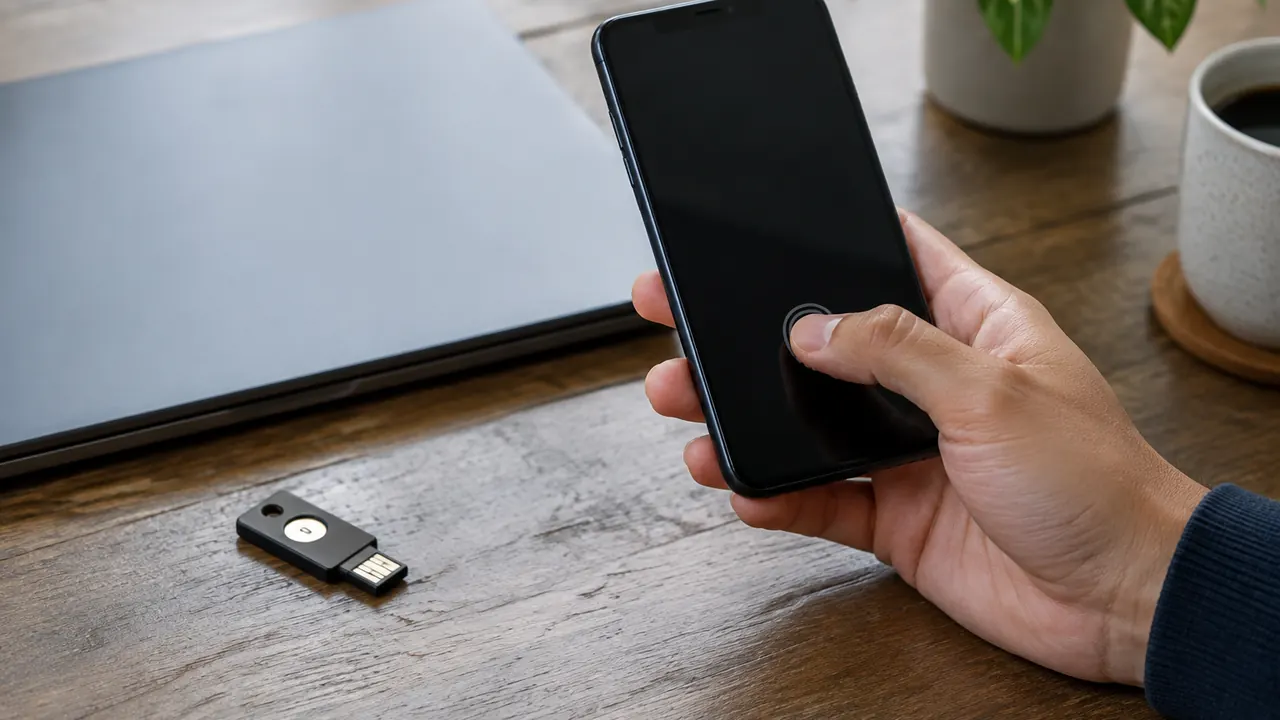
A passkey can turn signing in into something as simple as unlocking your phone: glance at the camera, touch a fingerprint sensor or enter your device PIN. There is no account password to remember and usually no text-message code to copy. By August 2026, passkeys are an established option across many major services, operating systems and password managers, although availability and setup still vary by account, device and browser.
The convenience is real, but the most important improvement happens behind the scenes. Passkeys are designed to prevent you from handing a usable login secret to an impostor website. They do not, however, eliminate every way an account can be stolen or every reason you might get locked out. Before replacing existing sign-in methods, learn where your passkey will live, whether it will reach your other devices and how you will get back in if your everyday phone disappears.
1. What a passkey actually replaces
A password is a shared secret: you enter it, and the service checks it against its records. A passkey instead uses a pair of cryptographic keys. The service keeps a public key; your device or credential provider protects the matching private key. During sign-in, the service sends a challenge that your authenticator signs. The private key is not sent to the website, and a stolen public key cannot be used to sign in.
Your fingerprint, face scan or device PIN typically authorizes that operation locally. The website does not receive your fingerprint or face template. That distinction matters: your biometric is not a new password stored at every retailer or bank. Depending on the device, someone who knows its unlock PIN may also be able to authorize passkey use, so protecting that PIN remains important.
A passkey may replace both a password and a separate verification step in a service's normal login flow. Do not assume every site handles this identically: some keep passwords available, request additional checks for sensitive actions or offer passkeys only on certain apps and devices.
2. Why phishing resistance is the big difference
A convincing fake login page can collect a password and immediately relay a text-message code to the real service. Passkeys work differently: the authentication process binds their use to the legitimate service's domain. Your browser or operating system will not simply use a real account's passkey on a look-alike domain. You do not have a reusable passkey code to read aloud to a caller or paste into a message.
Text codes are better than having no additional protection, but they remain vulnerable to phishing and to certain phone-number takeovers, including SIM-swap attacks. An authenticator app avoids dependence on cellular delivery, yet its ordinary one-time codes can still be phished. A properly implemented passkey addresses that fake-login problem directly, rather than merely making stolen credentials expire sooner.
- Passkeys do not stop malware from abusing an already signed-in device or stealing a session.
- A weak password-reset or account-recovery route can still undermine an otherwise strong login.
- An unexpected request to unlock your device or approve account access deserves scrutiny, even without a password prompt.
| Method | What you use | Phishing resistance |
|---|---|---|
| Password | A memorized or saved secret | Can be entered on a fake site |
| Text-message code | A code sent to your phone number | Can be relayed by an attacker |
| Authenticator-app code | A short-lived code generated in an app | Can still be relayed |
| Passkey | A cryptographic credential authorized through an authenticator | Bound to the legitimate service |
3. Decide where your passkeys should live
Before clicking Create passkey, identify the provider that will save it. That could be your device's built-in credential manager, a compatible third-party password manager or a physical security key. The choice affects which devices can use it and what recovery looks like. A prompt may offer several destinations; read it instead of accepting whichever appears first.
Synced passkeys are designed to become available through the same credential provider on other supported devices. Major providers generally protect that syncing with end-to-end encryption, but their device-approval and recovery rules differ. A device-bound passkey stays on its authenticator, such as a compatible hardware security key, rather than traveling through a cloud account. Work-managed devices may impose additional restrictions.
Choose based on the devices you actually use, not just the phone in your hand today. If you regularly move between operating systems, check the provider's browser support, mobile integration and recovery requirements. Do not assume passkeys will move automatically when you switch phones, managers or platforms. Transfer options are evolving, and support must exist on both sides. Creating an additional passkey with the new provider may be the practical alternative.
4. Set up one account and test it first
Start with an account you can recover easily, rather than making your primary email account your first experiment. Update your device, browser and credential manager, and enable a strong screen lock. Open the service directly through its app or a known address, then look in account security settings for Passkeys, Sign-in methods or a similar label.
The service should ask you to authenticate before adding a passkey. A system or credential-manager prompt then asks where to save it and how to authorize creation. Afterward, inspect the account's security page to confirm the new credential appears. If naming is supported, use a useful label, such as Personal manager or Spare security key, rather than something you will not recognize later.
- Keep your existing signed-in session open while testing the new method in another browser window or device.
- Choose the passkey sign-in option and verify that it opens the correct account.
- Check where the credential was saved; it may not be in your preferred manager.
- Test a second supported device before removing any older login method.
- If setup fails, check the service's supported devices and browsers instead of repeatedly creating credentials.
5. Understand syncing and phone-assisted sign-ins
Syncing does not mean every screen you own instantly gains access. A second device typically needs the same credential provider, the appropriate account and any required approval or unlocking steps. A browser may also need an extension or operating-system integration. Test the complete journey: open the service, select the passkey and confirm that your intended provider supplies it.
You may also be able to use a phone's passkey to sign in on a nearby computer without copying the credential there. The computer displays a QR code, you scan it with your phone and authorize the request. This standardized cross-device flow commonly uses Bluetooth to verify proximity, along with an encrypted connection. Both devices generally need internet access, and Bluetooth may need to be enabled.
That nearby-phone option is handy on a supported computer outside your usual ecosystem, but it is not a backup for a lost phone. Nor does it make an untrusted computer safe: the resulting browser session can still expose your account. Use only a sign-in you initiated, check the service and account shown on your phone, and sign out afterward on shared equipment.
6. Build recovery before retiring old methods
Plan for losing all the devices in your bag, not just replacing a broken screen. A synced passkey helps only if you can regain access to its provider. Review that provider's recovery process and your service's separate recovery process; they are not necessarily the same. Look for circular dependencies, such as needing access to your email to recover the manager that holds your only email credential.
Where supported, add a second, independent passkey, such as one on a compatible hardware security key stored safely at home. Register it with each important service and test it; owning an unused key provides no recovery access. Some services limit how many passkeys you can add or offer no recovery codes, so verify the available routes rather than assuming.
- Save service recovery codes offline or in another secure location you can access without the missing device.
- Keep recovery email addresses and phone numbers current, and protect the email account especially carefully.
- Record which provider holds each critical passkey and what is required to recover that provider.
- Test backup access before disabling a password or text-code option.
- If a password must remain, make it unique and keep the strongest additional verification the service supports.
7. Know what to do when devices change or disappear
When upgrading a phone, keep the old one until you have confirmed that the new device can unlock your credential provider and sign in to important accounts. Test email, financial services and other essential accounts individually. A successful device transfer is not proof that every passkey is available. Before selling or recycling the old device, follow its manufacturer's sign-out and factory-reset instructions.
If a device is lost, use the platform's lost-device controls promptly and secure the account that provides credential syncing. Review important services for active sessions and unfamiliar activity. Signing out a missing device, removing its provider access and deleting a registered passkey are different actions; one does not necessarily perform the others. Deleting a synced credential may also affect your remaining devices, so confirm backup access first.
The goal is not to erase passwords at any cost. It is to make everyday sign-ins harder to steal while keeping a tested route back in. Move account by account, verify each recovery plan and revisit it whenever your devices or credential provider change.
Check each service's current passkey support, recovery rules and any hardware or subscription costs before changing your sign-in setup.
AI Assistance Used — AI assistance was used in researching and drafting this article. It was reviewed, edited, and fact-checked by Lisa Barber before publication.