Can't Hear TV Dialogue? Try These Settings Before Buying Speakers
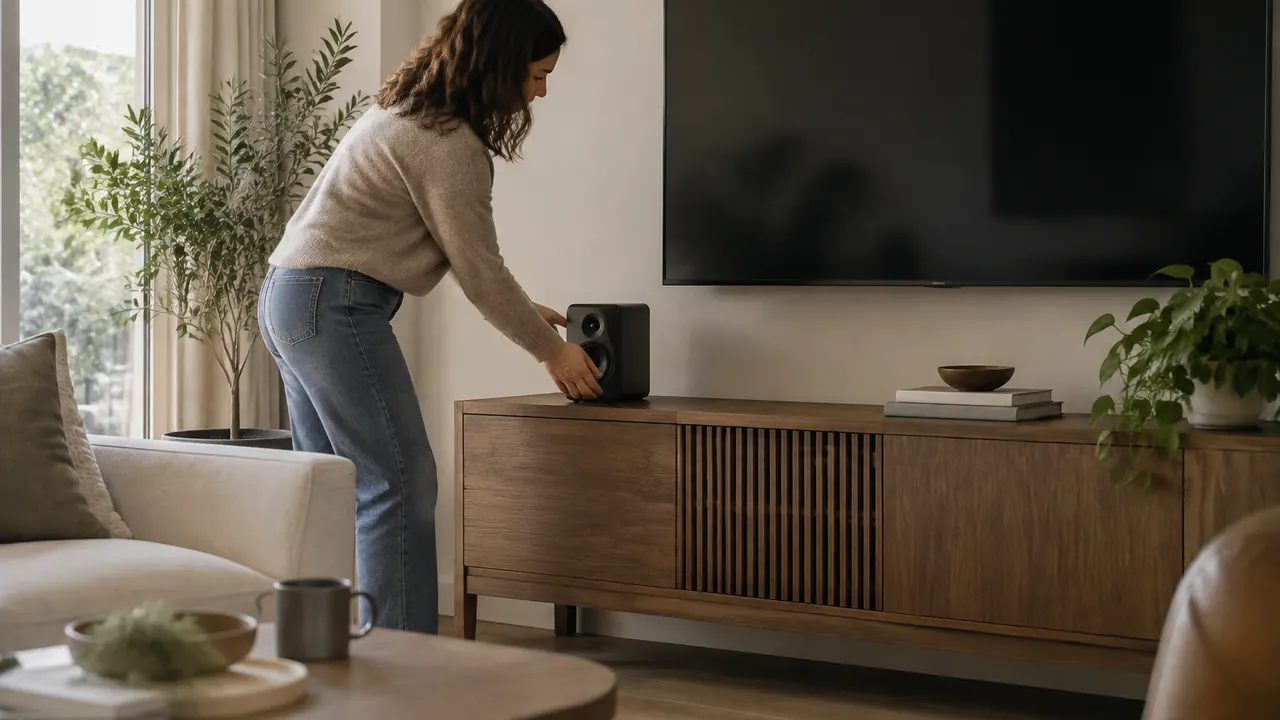
If you keep turning up the TV for conversations and turning it down for music or explosions, louder speakers may not be the first thing you need. The problem could be a wide gap between quiet and loud sounds, a surround soundtrack playing through a less-than-ideal setup, or speech getting masked by bass and room noise. Thin television speakers can contribute, but buying a soundbar before checking the basics can leave the original problem untouched.
Start with the device that actually produces your sound: the television, soundbar, receiver or streaming player. On TVs and streaming devices in use in 2026, audio controls still vary by brand, model, app and connection. A setting called Clear Voice on one product may be Dialogue Enhancement, Voice Zoom or something else on another. Use the following tests one at a time, keeping changes only when the same difficult scene becomes easier to follow.
1. Set up a repeatable listening test
Choose a short scene with ordinary conversation, some background music and at least one louder moment. Replay the same minute after each change, from your usual seat. Keep the perceived loudness roughly comparable: a setting that simply makes everything louder can seem clearer without improving the balance. Temporarily use captions to confirm a missed line, then replay it without reading along.
Take a photo of the original settings so you can undo your experiments. Start with a neutral sound preset, often called Standard, rather than stacking several effects on top of a movie or stadium mode. If external speakers are connected, television sound controls may be unavailable or may not affect what you hear. Check the soundbar or receiver menu instead, and avoid playing the TV speakers and external speakers together unless the equipment specifically supports synchronized playback.
- Compare one troublesome show with a news program or another clearly recorded source.
- Note whether the problem affects every app, only one service, or an HDMI-connected device.
- Confirm that the selected audio track is the intended language and version.
- Change one control, replay the scene, and write down whether speech actually improves.
2. Try dialogue enhancement before broad sound effects
Look in Sound, Audio, Accessibility or the soundbar's companion app for a voice-focused control. It may be labeled Speech Clarity, Dialogue Enhancer, Clear Voice or Voice Mode. Some products use frequency adjustments; others try to separate voices from the rest of the soundtrack. Names involving AI do not establish how well a feature works. Availability can also depend on the input, audio format or selected sound preset.
Begin with the lowest enhancement level and increase it only as needed. Listen for consonants becoming easier to distinguish, not merely for brighter sound. Excessive processing can make voices thin, sharp or unnatural, bring up hiss, or make music change level around speech. If the result sounds strained, back down a step rather than compensating with more volume. Voice processing also cannot reliably reconstruct words buried in a difficult original mix.
If there is no dedicated voice option, try a small bass reduction or a modest midrange adjustment where available. Avoid making large changes across an equalizer at once. On a system with a real center speaker, a small center-channel level increase may help because much film and television dialogue is routed there. That is different from boosting treble or selecting a simulated center effect on a two-speaker TV.
3. Use night mode to narrow loudness swings
Night mode usually aims to reduce the difference between quieter and louder sounds, a process known as dynamic range compression. Depending on the implementation, it can lower peaks, raise quieter details or do both. Search for Night Listening, Reduce Loud Sounds, Dynamic Range or DRC. This can be particularly useful when you understand dialogue at a comfortable level but action scenes become too loud.
Do not assume every setting with a similar name behaves identically. Some work only with certain soundtrack formats, and an Auto option may follow information in the audio stream rather than apply consistent compression. If your player sends audio directly to a receiver, the receiver may be the place to make this adjustment. Consult the model's current manual if a control is grayed out or seems ineffective.
- Replay a scene that moves from quiet conversation to a loud effect, without touching the remote.
- Try a moderate compression setting before the strongest one, if multiple levels are offered.
- Expect less dramatic impact from music and effects; that is often the intended trade-off.
- If background noise swells or the soundtrack seems to pulse, reduce the effect or switch it off.
4. Test stereo output, but do not confuse it with PCM
For TV speakers or a basic two-speaker setup, testing a stereo output can reveal whether surround processing or format handling is contributing to muddy dialogue. Look in the streaming device, television or app for Stereo or an explicit two-channel option. Properly downmixed stereo includes the dialogue from the surround mix; it should not simply discard the center channel. A stereo test is a diagnostic step, not a guarantee of clearer speech.
PCM is not a universal synonym for stereo. Some televisions use a PCM digital-output setting to deliver two-channel sound, especially over optical connections, but HDMI connections can support multichannel PCM when the devices and connection allow it. Auto, Bitstream and Pass-through have different purposes and can preserve surround audio for compatible equipment. Check what your specific menu promises rather than changing an unfamiliar label blindly.
If stereo helps, keep it temporarily and compare other programs. With a capable surround system, however, forcing stereo sacrifices directional effects and may stop the center speaker from receiving a discrete dialogue channel. Restore the original output if the test makes no useful difference.
| Output choice | What it generally does | What to verify |
|---|---|---|
| Stereo or 2-channel | Uses a two-channel output | Whether voices improve and surround effects are lost |
| PCM | Sends decoded digital audio | Whether this device outputs two or multiple channels |
| Auto | Selects a format based on device behavior and compatibility | What format the receiving equipment actually reports |
| Bitstream or Pass-through | Can send encoded audio for downstream decoding | Format support across the source, TV and audio system |
5. Treat volume leveling as a separate experiment
Volume leveling generally targets changes in overall loudness, such as differences between programs, channels or sources. Labels include Auto Volume, Volume Leveling and Loudness Normalization. Its behavior can overlap with night mode, but the two are not necessarily interchangeable. One may make consecutive videos more consistent while the other limits an explosion within a scene. Neither should be assumed to isolate voices from background music.
Test leveling with the actual situation that bothers you: switching channels, moving between apps or going from a program into an advertisement. Keep the remote untouched during a comparison, but start at a safe, comfortable volume. Some controls operate only within one app or input, so they cannot equalize every source connected to your television. Advertisements and programs also vary; no setting guarantees that every transition will sound identical.
Avoid enabling leveling on the streaming player, TV and soundbar all at once. Multiple processing stages can make the sound pump, flatten music or create confusing results. Start with one device, compare, and add nothing unless you can identify a remaining problem. If leveling smooths transitions but dialogue stays buried inside scenes, return to voice enhancement, dynamic range controls or speaker placement rather than continually increasing its strength.
6. Give the speakers a clearer path to your seat
Settings cannot fully overcome speakers firing into furniture or a highly reflective room. Locate the television's speaker openings without assuming they face forward; they may be underneath or toward the back. Keep those openings unobstructed and follow the manufacturer's clearance requirements. If you move the television, preserve its stability and anti-tip protection. Do not improvise risers or alter a wall mount just to redirect sound.
For a separate speaker or soundbar, start with a position near the front edge of the console, outside an enclosed cubby, while following placement guidance. Aim a separate center speaker toward seated ear level when its design allows. Moving it out from behind a cabinet lip can be more useful than another processing mode. Leave vents and any upward-firing drivers clear, and avoid blocking the television's remote-control sensor.
- Remove decorative objects directly in front of speakers and listen again from your normal seat.
- Lower competing noise from fans, dishwashers or nearby conversations during the comparison.
- Try curtains, a rug or existing soft furnishings if the room sounds noticeably echoey.
- Check an alternate seat; distance and reflections can change speech clarity substantially.
7. Buy external audio for a specific remaining problem
If dialogue remains indistinct across several well-recorded programs after these tests, external audio may offer a meaningful improvement. Look for clear speech at the volume you actually use, not just impressive bass in a store demonstration. A soundbar with a dedicated center channel can provide more direct control over dialogue, although design and processing still matter. A well-performing stereo pair can also outperform weak TV speakers without a center channel.
Before buying, verify connection compatibility, fit, dialogue controls and the return policy. HDMI ARC or eARC can simplify everyday use, but both devices must support the features and formats you intend to use. An optical connection may be adequate for a simpler setup, with different format and control limitations. Test the purchase at home using your original difficult scene before deciding it solves the problem.
Personal listening may be a better fit when one viewer needs more clarity than others. Compatible TV headphones or hearing-device streaming can help, but check delay, pairing and whether the TV can keep room speakers active simultaneously. Captions remain a useful option, not a failure. If difficulty understanding speech also occurs away from the television, consider discussing it with a hearing-care professional.
Check your model's current manual for supported audio settings and connections, and consult a qualified professional if hearing difficulties persist.
AI Assistance Used — AI assistance was used in researching and drafting this article. It was reviewed, edited, and fact-checked by Leah Fornier before publication.