27-Inch or 32-Inch Monitor? Match Screen Size and Resolution to Your Desk
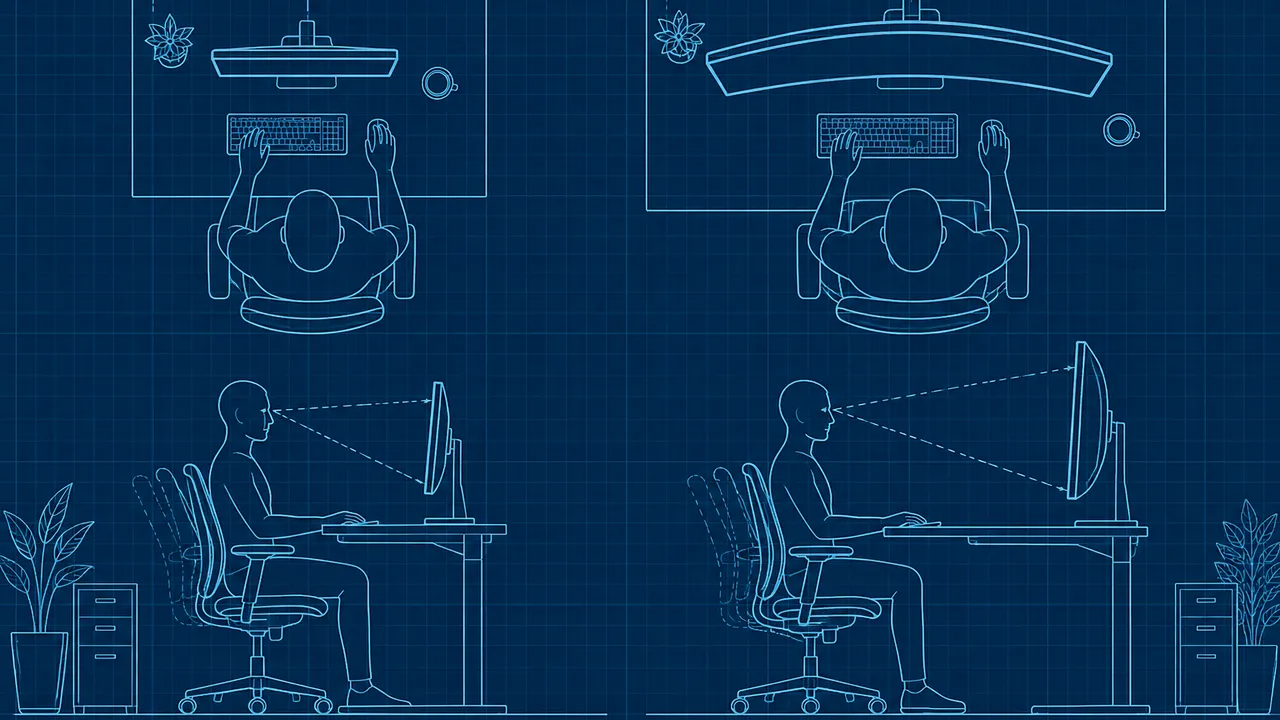
A 32-inch monitor can make spreadsheets and side-by-side documents easier to manage, but it can also overwhelm a shallow desk. A 27-inch model may deliver sharper-looking text, easier positioning and better value. The right purchase depends on resolution and placement, not simply the diagonal measurement on the sale tag. Compare both sizes at your intended viewing distance, not from a showroom aisle.
For home-office shopping in October 2026, compare the whole setup: where your eyes sit, how large you need text, whether windows cause reflections and what your computer can actually drive. Start with those constraints, then decide how much screen is useful.
1. Measure usable desk space, not just width
Most office monitors use a 16:9 shape. At that ratio, a 27-inch screen is about 24 inches wide; a 32-inch screen is about 28 inches wide, before bezels. Product dimensions matter more than these estimates, particularly when speakers, shelves or a second display compete for room.
Depth is often the deciding factor. OSHA workstation guidance generally places comfortable monitor viewing within roughly 20–40 inches, but that is a broad range, not a prescription. A larger screen may feel better farther back. Measure from your seated eyes to the proposed screen position, allowing for the stand and a comfortably placed keyboard.
If the desk sits against a wall, check an arm’s folded depth. Some articulated arms need rear clearance and cannot push the screen fully backward.
- Check the stand’s footprint, not just panel depth.
- Mock up screen width with cardboard before ordering.
- Leave room for cables behind the display.
- Confirm a monitor arm’s clamp fits your desk.
2. Pair screen size with enough resolution
Resolution determines how many pixels make up the image; pixel density describes how tightly they are packed. At the same resolution, a larger monitor has bigger pixels. That can make unscaled text larger, but fine lettering and diagonal lines generally look less crisp at the same viewing distance.
The approximate densities below assume standard widescreen panels. Some monitors sold as 32-inch actually measure 31.5 inches, so small differences are normal. For text-heavy work, 27-inch QHD is a practical middle ground, while 4K adds definition at either size. A 32-inch QHD screen can suit shoppers who prefer larger interface elements without scaling, provided its lower density looks comfortable in person.
At identical resolution and scaling, both sizes show the same number of spreadsheet cells. The larger diagonal enlarges those cells rather than adding workspace.
| Size and resolution | Approximate pixels per inch | Shopping takeaway |
|---|---|---|
| 27-inch QHD, 2560 × 1440 | 109 | Balanced workspace and clarity |
| 27-inch 4K, 3840 × 2160 | 163 | Sharp text; scaling usually helpful |
| 32-inch QHD, 2560 × 1440 | 92 | Larger pixels; inspect text closely |
| 32-inch 4K, 3840 × 2160 | 138 | Roomy screen with strong detail |
3. Test scaling with your actual work
More pixels do not automatically mean more usable workspace. Operating-system scaling enlarges text, icons and controls while retaining the panel’s native resolution. A 4K monitor at 150% scaling offers a workspace roughly comparable to QHD at 100%, but with finer rendering in applications that handle scaling properly.
Try your usual spreadsheet, browser and video-call app rather than judging a showroom’s landscape video. Windows and macOS provide display-size controls, though their options and rendering differ. Older applications, remote desktops and mixed-density dual-monitor setups can behave unevenly. Check Microsoft’s or Apple’s support pages for current instructions, and prioritize a return policy that permits testing at home.
Open settings dialogs and print previews at your preferred scaling. Check that buttons remain visible and that two documents fit side by side without excessive scrolling.
- Read small spreadsheet labels without leaning forward.
- Move windows between laptop and external screens.
- Keep native resolution; adjust scaling or app zoom for comfort.
4. Treat glare and adjustment as essentials
A bigger panel presents more surface area for reflections and may be harder to position away from a bright window. Place the screen perpendicular to windows when possible, use blinds to control daylight and avoid lamps reflected directly toward your eyes. Matte coatings can soften reflections, but they do not make a badly positioned display glare-proof.
Look for height and tilt adjustment, plus swivel if the desk serves multiple tasks. OSHA generally recommends keeping the screen’s top at or slightly below eye level; people using bifocals may need a lower position. A 32-inch screen is taller, making minimum stand height particularly important. Check adjustment ranges and VESA mounting support on the manufacturer’s specifications. An arm can reclaim desk space, but verify its weight capacity and mounting requirements before including it in the budget.
Check brightness after dark, too. A display that looks comfortable in daylight may feel harsh at night; reviews measuring minimum brightness can help identify suitable models.
5. Verify the connection before checking out
A monitor’s resolution is useful only if the computer, cable and any dock can deliver it at a comfortable refresh rate. For ordinary office work, 60Hz is a reasonable baseline; higher rates can make scrolling smoother. Check the exact supported resolution-and-refresh combinations rather than relying on an HDMI, DisplayPort or USB-C label alone.
USB-C deserves special attention: not every port carries video, and charging capability varies. Compare the monitor’s power delivery with your laptop manufacturer’s requirements. A one-cable setup may still need the laptop charger during demanding work. Add any required cables, adapters or arm to the purchase price before deciding which monitor is the better deal.
If you want the monitor’s USB hub for a webcam or keyboard, verify its upstream connection. HDMI and DisplayPort alone generally do not connect those peripherals.
- Check the computer’s external-display limits.
- Confirm the dock supports your complete monitor arrangement.
- Verify USB-C video support and charging wattage.
- Read retailer return terms and manufacturer warranty details.
Specifications, compatibility and return policies vary; verify current details with manufacturers, retailers and official ergonomic guidance before buying.
AI Assistance Used — AI assistance was used in researching and drafting this article. It was reviewed, edited, and fact-checked by Leah Fornier before publication.