Why Your Shows Keep Buffering, and How to Find the Real Cause
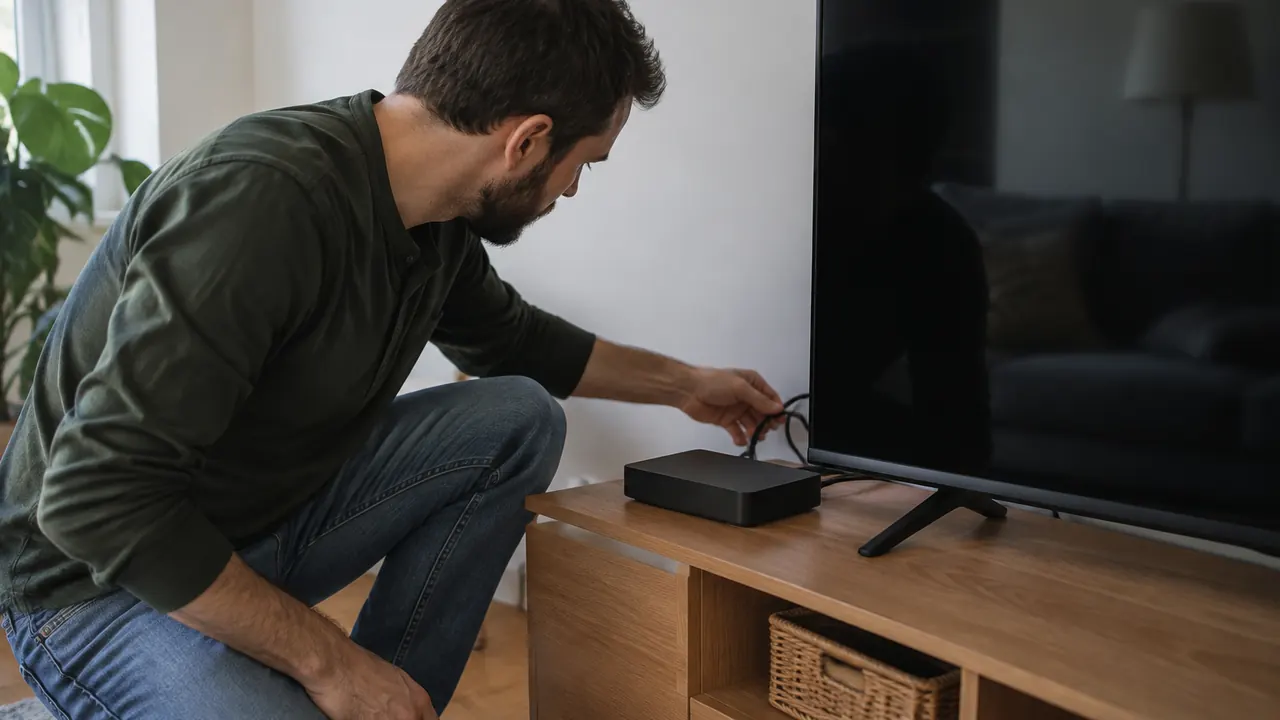
The spinning circle usually arrives at the worst moment: a game’s final possession, a mystery’s big reveal or the one hour you have to relax. It is tempting to blame your internet plan, especially when an upgrade promises more speed. But a stalled show can originate at the streaming service, inside an app, on your home network or along your provider’s connection. Buying more bandwidth fixes only some of those problems.
The useful approach in 2026 is still surprisingly simple: change one thing at a time and compare results. Modern streaming boxes, mesh routers and smart TVs offer plenty of settings, but adjusting everything together destroys the clues. Start with the checks below, keep brief notes and repeat tests when buffering normally happens. You want evidence of the bottleneck before spending money.
1. Establish what is actually failing
First, identify the symptom. Buffering means playback pauses while the player waits for more video data. A picture that briefly becomes soft may mean the app is reducing quality to keep playing. Judder during camera movement, mismatched dialogue or a black screen can have other causes, including display settings or an HDMI connection. Those symptoms alone do not establish an internet-speed problem.
Choose a repeatable test: the same show, on the same device, in the same room. Note the time, whether the program is live or on demand, and roughly how long it plays before stopping. Live streams generally have less room to absorb interruptions than on-demand programs, although behavior varies by service. A problem limited to live sports deserves a different investigation from one affecting every app.
Then map the scope using the checks below. Keep other conditions as steady as possible; comparing a bedroom TV at night with a phone beside the router at noon mixes too many variables. These early comparisons will not deliver a diagnosis, but they determine which branch to investigate next.
- Try another title in the same app, preferably a familiar on-demand program.
- Try a different streaming service on the original device.
- Try the original service on a second device using the same home network.
2. Rule out a service or app-specific outage
If one service fails while others work, check its official help center, status page if available, and support announcements. Crowdsourced outage reports can provide context, but a spike in complaints does not prove your problem has the same cause. Regional delivery issues, account errors and a broken app update can look similar from the couch. A working homepage also does not prove the service’s video delivery is healthy.
Next, try that service on a phone with Wi-Fi turned off, if your cellular allowance permits. Keep the test brief because video uses substantial data. Success over cellular and failure over home internet point toward something about the home-network path, but not necessarily your router: provider routing or the service’s delivery network could be involved. Failure on both connections strengthens the case for a service, account or app problem.
If only one title fails, report its name, episode and playback timestamp. If the service fails across devices, avoid factory-resetting your equipment while an outage is suspected. A different app can be a temporary workaround. Be aware that simultaneous-stream limits and household-verification rules may produce playback errors; read the actual message before treating an account restriction as buffering.
3. Separate weak Wi-Fi from the internet connection
The most useful home-network comparison is wired versus wireless. If your streaming device supports Ethernet, temporarily connect it to the main router with a known-good cable and turn off its Wi-Fi if necessary to ensure it uses the cable. Replay the problem content. If wired playback works reliably while wireless playback stalls under comparable conditions, Wi-Fi becomes the leading suspect. It is not a reason, by itself, to buy a faster internet plan.
If Ethernet is impractical, test the same portable device near the router and then at the viewing location. Walls, distance, neighboring networks and the location of a mesh node can affect performance. A mesh system can show a strong device connection while its wireless link between nodes is weak. Likewise, a router’s built-in speed test measures its own internet access, not the wireless connection to your television.
- Move the router into the open rather than behind a TV, inside a cabinet or on the floor.
- If your router allows it, compare available Wi-Fi bands; 5 GHz or 6 GHz may offer capacity nearby, while 2.4 GHz may reach farther.
- Place a wireless mesh node where it still receives a good upstream signal, not deep inside the dead zone.
| Test result | Leading possibility | Next check |
|---|---|---|
| Wired works; Wi-Fi stalls | Wireless coverage or interference | Compare locations and bands |
| Both stall on several devices | Shared connection or service issue | Test other services and wired speed |
| Only one device stalls | Device, app or its network link | Update and compare apps |
| Only one service stalls | Service-specific or delivery-path issue | Check status and another connection |
4. Test the streaming device before replacing it
When another device plays smoothly on the same network, focus on the original player. Fully close and reopen the app, then restart the streaming device through its menu or according to its manufacturer’s instructions. Turning a television off may only put it into standby. Install available app and system updates, and check that the device has adequate ventilation. Heat, limited storage or aging software can cause playback trouble even with a strong connection.
If the problem remains confined to one app, follow its troubleshooting instructions. Clearing an app’s cache may help on supported devices; clearing its data or reinstalling it can sign you out and remove downloads or preferences. Have your login information ready. If you use a VPN, filtering service or custom network configuration, briefly compare playback without it where permitted. Restore any security settings after testing rather than leaving protections disabled.
Also consider how the device is powered. A streaming stick connected to an unsuitable television USB port may behave unreliably; use the manufacturer-recommended power supply. Save a factory reset for later, after documenting settings and trying less disruptive steps. Replacement becomes reasonable when the device is no longer supported or repeatedly fails controlled comparisons, not simply because it is several years old.
5. Measure usable bandwidth, not just the advertised plan
Now run speed tests, ideally on a computer connected by Ethernet to the main router. Pause downloads and other heavy activity for an initial baseline, then repeat during the household’s normal busy period. Use more than one test destination if results look surprising. Record download and upload speeds, along with latency or packet-loss measurements when available. A single high result does not rule out intermittent drops or evening congestion.
For streaming, sustained download capacity matters more than the largest number on your bill. Many services recommend roughly 5 to 10 megabits per second for an HD stream and about 15 to 25 Mbps for 4K, but requirements vary by service, format and content. Check the current recommendation for the app you actually use. These are per-stream guidelines, not guarantees or universal household plan recommendations.
Add the needs of simultaneous streams and leave room for other activity. Two 4K streams can need substantially more capacity than one HD program, while adaptive playback may temporarily use less. A fast wired result alongside a poor result at the TV points back toward the local network. Repeatedly poor wired results across test services warrant a provider conversation, especially if they fall well below your plan’s expected performance.
6. Look for competing traffic and unstable delivery
A connection can have enough average speed and still deliver video unevenly. Large game downloads, cloud backups and security-camera uploads can compete with playback. Saturating the upload side may also increase delays for other traffic. Speed tests taken while the home is quiet miss these conditions, so recreate the household activity that accompanies the buffering. Ask others before pausing their work or disconnecting devices.
Change one source of traffic at a time and watch whether playback improves. Router traffic tools may help identify a busy device, although labels and measurements vary. Quality-of-service or smart queue management features can sometimes improve responsiveness under load; they cannot create missing bandwidth. Follow the router’s documentation, record original settings and retest rather than assuming a gaming or streaming preset will solve the problem.
- Pause a large download or backup, replay the same content, then resume it to compare.
- Temporarily lower playback quality; improvement suggests a delivery-capacity issue but does not identify where it occurs.
- Note whether problems follow a particular time, household activity or device rather than happening randomly.
7. Escalate with evidence, and buy only for the proven gap
If several services fail across devices even on Ethernet, inspect accessible connections for loose plugs or damaged cables. Restart the modem, gateway or router according to the provider’s instructions, allowing it to reconnect fully. Do not press a recessed reset button unless you intend to erase settings. Avoid opening equipment or handling damaged wiring; ask the provider about line faults, signal problems and local outages.
Give support your test times, wired results, affected services and whether the problem persists with other traffic paused. Ask what its remote checks show and request a case number. Upgrade only if testing shows household demand exceeds reliably delivered capacity; improve Wi-Fi if the wireless link is the bottleneck. Before accepting any offer, verify the total recurring price, equipment fees and promotional expiration. The right fix should match the evidence, not the sales pitch.
Check current service speed recommendations, device-support requirements and provider prices and terms before changing your setup or plan.
AI Assistance Used — AI assistance was used in researching and drafting this article. It was reviewed, edited, and fact-checked by Jordan Singh before publication.