Downloading Shows for a Trip: The Checks to Make Before Leaving
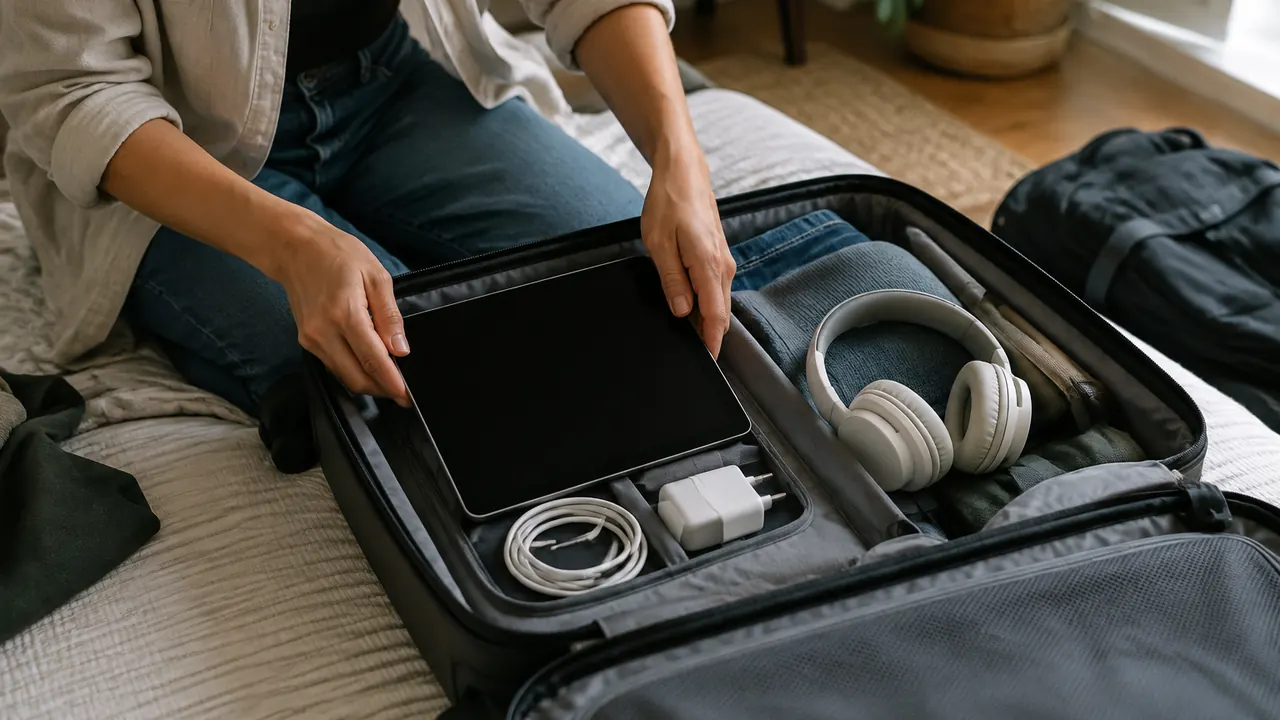
Downloading a season before a flight sounds simple: tap the arrow, pack the tablet and press play after takeoff. But the file on your device is only part of the arrangement. Streaming downloads generally remain controlled by an app and a temporary viewing license. A show can appear in your library yet refuse to play because the download never finished, the license expired or the app needs to verify your account.
For travel in 2026, treat offline viewing as something to test, not assume. Rules vary by service, subscription tier, title, device and destination, and an app update can change familiar menus. The best predeparture check covers both the content and the exact device you will carry. Do it while you still have reliable internet and time to fix a problem.
1. Confirm that your plan, title and device qualify
Start inside the service’s current app, signed into the account and profile you intend to use. Being able to stream a show does not necessarily mean you can download it. Rights holders may allow downloads for some titles but not others, and subscription tiers can have different offline benefits. Do not assume either that every paid plan includes downloads or that every ad-supported plan excludes them.
Check the device separately. A service may support downloading on phones and tablets without offering the same feature in a browser, computer app or television app. Downloads typically stay inside the app on the device that saved them; they are not ordinary video files you can copy to another screen. If you are relying on a laptop, verify its specific operating system and app support before building your trip around it. Then download one episode as a trial before queuing the rest.
- Look for a download button on each episode, not just the series page.
- Check the plan’s download allowance and any limit on authorized download devices.
- Confirm that the app supports your device and operating system version.
- For children, verify that their profile can find and play the saved title.
2. Match the expiration window to your itinerary
There is no universal expiration rule for streaming downloads. A service may set one deadline for an unwatched download and a shorter window after playback begins. Some titles have different limits within the same service. Your subscription status and the service’s right to carry the title can also affect availability. Read the download details and help page rather than treating a familiar time limit as a promise.
Plan around when you expect to watch, including the return journey. An episode downloaded well before departure may have little time left by the outbound flight. Starting it for a test can trigger a shorter viewing window, so check the timer afterward and renew or redownload if the app permits. Renewal may require internet, and repeat downloads can be restricted for some titles. For a long trip without connectivity, assume that a large download queue is not automatically a library you can use indefinitely. Check deadlines again the night before leaving.
| Possible limit | What to verify | Travel implication |
|---|---|---|
| Unwatched download deadline | Expiration date or remaining time | Download closer to departure if needed |
| Window after starting playback | When the shorter timer begins | A preview may start the countdown |
| License or account verification | Whether an online check is due | Reconnect before losing service |
| Renewal or repeat-download restriction | Whether the title can be saved again | Keep an alternative available |
3. Budget storage and verify that every file finished
Download size depends on episode length, picture quality, compression and the service’s available versions. Avoid planning around a single estimate for an hour of television. Save one representative episode at your chosen quality, check the space it uses, then estimate the rest with room to spare. Your device also needs storage for trip photos, maps, messages and routine system activity. Maximum video quality is not always worth the storage cost on a small screen.
Keep the device on dependable Wi-Fi and power while the queue runs. A progress circle, queued label or episode listed in a library is not proof that its download is complete. Open the downloads area and check each item’s status. Depending on the app and device, transfers may pause when the app closes, battery-saving settings intervene or the network drops. Check for automatic download features that might delete watched episodes or replace them with new ones. Those features can be convenient at home but confusing when you have deliberately selected shows for a trip.
- Remove old downloads through the streaming app before adding new ones.
- Confirm available device storage after the full queue finishes.
- Review smart-download and automatic-deletion settings, if offered.
- Keep a shorter backup selection rather than filling every available byte.
4. Choose audio, subtitles and accessibility options early
The language options shown while streaming are not always identical to those available offline. A download may contain selected audio and subtitle tracks rather than every option on the title’s streaming page. Services handle this differently: some use current language preferences, while others offer choices during download or playback. Set your preferred audio and subtitles first, then verify what was actually saved. Do not assume you can fetch a missing track from an airplane seat.
Test accessibility features with the same care. Audio description and captions may be available for a title but not for every language, episode or downloaded version. Ordinary subtitles do not necessarily include speaker identification and sound information provided by captions. If the options you need are missing offline, reconnect and check whether changing preferences and downloading again resolves it. Otherwise, choose another title while you still can. For a shared family device, repeat this check with the profile and playback settings that the eventual viewer will use, not just the account holder’s defaults. A two-minute check now can prevent hours of unusable entertainment later.
| Feature | Offline check | If it is missing |
|---|---|---|
| Preferred audio language | Listen to dialogue with internet off | Review language settings and download options |
| Subtitles | Confirm the chosen language displays | Check whether the track must be saved separately |
| Captions | Verify dialogue and sound information | Look for the appropriate caption option |
| Audio description | Listen for narration of visual details | Verify support for the downloaded episode |
5. Run a genuine offline playback test
Test the actual travel device, not another device on the same account. First confirm that the app is signed in and the downloads show as complete. Then enable airplane mode and explicitly turn off Wi-Fi; many devices allow Wi-Fi to remain on or be reenabled in airplane mode. The goal is to remove both cellular and Wi-Fi internet access. Bluetooth can usually be enabled separately for headphones, subject to crew instructions during a flight.
Close and reopen the app without signing out, navigate to its downloads area and play a saved episode. Let it run briefly, seek to a later point and check the audio and captions. This provides more confidence than seeing a thumbnail or playing an opening that might already be cached. Repeat across the services you plan to use and spot-check several episodes. Remember that a successful test proves playback works now, not that a license will remain valid throughout the trip. Recheck any expiration timer the test may have started.
- Use the download library rather than a streaming link or home-screen recommendation.
- Pair and test headphones; pack any adapter needed for wired listening.
- Check dialogue volume and caption readability in your usual viewing position.
- Restore internet afterward to resolve errors and review expiration notices.
6. Understand what can break playback away from home
A download can fail because the video file and permission to play it are separate. The app may need an online account or license check, an expired download may need renewal, or the subscription may no longer be active. Signing out, clearing app data or reinstalling the app can remove downloads or make them unusable. Changing profiles can also change which saved titles are visible or permitted. Avoid treating account maintenance as harmless once you have prepared your travel library.
International travel adds another variable. Catalogs and viewing rights differ by country, and a saved title’s behavior abroad depends on the service’s rules. Downloading at home does not guarantee that every title will play or renew at your destination. Nor does a hotel connection guarantee success: a captive sign-in page, weak signal or restricted network may prevent verification. Check the service’s travel guidance before departure. If a saved episode fails, read the error message before deleting anything. When possible, reconnect to a trusted network, confirm that the subscription is active and follow the app’s renewal instructions. Do not assume a VPN is a reliable fix; services may restrict its use, and it does not extend an expired license.
7. Make one final check before you leave
On departure day, open each streaming app while you still have dependable internet. Confirm that the planned episodes remain downloaded, note any expiration warnings and make sure the account is accessible. Avoid last-minute reinstalls or unnecessary account changes. If an update is required, allow time to complete it and repeat the offline test. Charge the device and pack a compatible charging cable, headphones and any permitted power bank according to your airline’s rules.
Think beyond the first flight. Download enough eligible material for the periods when you expect to be offline, but schedule a legitimate refresh during longer trips if the service requires one. Keep an alternative such as a locally stored personal video, downloaded audiobook or ebook, and test that too. Offline entertainment works best as a checked arrangement, not a promise made by a download icon. The essential question before leaving is not whether an episode appears saved; it is whether this device, using this account, can play it without internet for the part of the journey when you need it.
Check each service’s current plan terms, device support, download limits and travel rules before departure, since these can change.
AI Assistance Used — AI assistance was used in researching and drafting this article. It was reviewed, edited, and fact-checked by Lisa Barber before publication.