Slow Wi-Fi or Slow Internet? Test Before Paying for an Upgrade
When a video freezes or a download crawls, buying a faster internet plan can feel like the obvious fix. But your internet service and your Wi-Fi are different links in the same chain. Your provider brings a connection to your home; your router distributes it to devices, usually wirelessly. A problem with either link can look identical from the couch. Paying for more speed only helps if the service itself is the limiting factor.
Before upgrading in 2026, run a short series of comparisons: Ethernet versus Wi-Fi, nearby versus distant rooms, and quiet hours versus busy evenings. You do not need laboratory equipment or a networking certification. A laptop, a suitable Ethernet adapter if necessary, and a few notes are enough to narrow the possibilities. The goal is not to chase the biggest speed-test number. It is to identify which change would actually improve your daily use.
1. Set up a fair test before changing anything
Start by checking your bill or account dashboard for your plan’s download and upload speeds. They may differ substantially, especially on cable connections. Note whether the figures are advertised as maximums or typical speeds. Your provider’s broadband consumer label can help clarify the offer, including typical speeds and latency, but check that you are reading the label for your specific plan and location.
Choose one reputable speed-test service and use the same test server when possible. Keep the same laptop for your first comparisons, plugged into power and reasonably up to date. Pause large downloads, cloud backups and streaming on other devices. Disconnect a VPN only when doing so is permitted and appropriate; do not bypass workplace security requirements. Record download, upload and latency, not just the largest number. If available, note loaded latency, which measures responsiveness while the connection is busy.
- Write down the date, time, room, device and whether the connection is wired or wireless.
- Run each test two or three times, briefly apart, rather than treating one result as definitive.
- Keep the test conditions consistent; simultaneous speed tests compete for the same bandwidth.
- Watch data allowances: repeated high-speed tests can consume substantial data, especially over cellular service.
2. Establish an Ethernet baseline
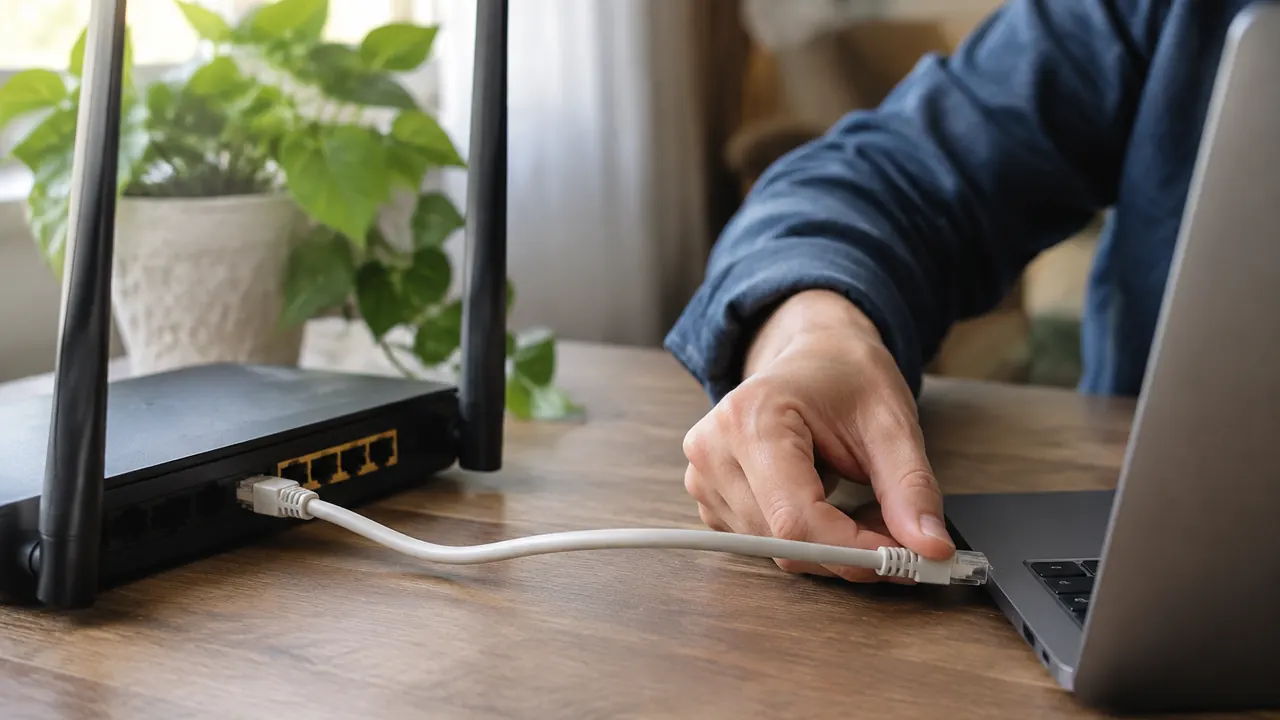
Connect the laptop to a LAN port on your router or combined modem-router gateway using a known-good Ethernet cable. Turn off the laptop’s Wi-Fi so you know the test is wired. This removes the wireless hop from the comparison, although the router, cable, laptop and test server can still limit the result. Avoid starting with a direct modem connection: that may require provider-specific steps and can remove the router’s firewall protection.
Check the negotiated Ethernet link speed in your computer’s network settings. A 100 Mbps connection cannot measure a 500 Mbps plan accurately, and a gigabit port cannot demonstrate the full capacity of a multigigabit plan. The laptop adapter, router port and connecting cable all matter. Real throughput is also lower than the nominal link rate because of overhead. If the baseline looks wrong, try another cable and port before blaming the provider. Save the results; this is the reference for every wireless test that follows.
- If wired speed is close to the plan’s expected performance, investigate Wi-Fi before upgrading service.
- If wired speed is persistently low, check equipment limits, background traffic and the provider connection.
- If the router offers a built-in internet test, use it as supporting evidence, not a replacement for device testing.
3. Repeat over Wi-Fi, then move through the house
Unplug Ethernet, turn Wi-Fi back on and test a few feet from the router with a clear path between it and the laptop. Then repeat in the room where you experience trouble, using the same device and test service. Add one intermediate location if practical. Keep the laptop out in the open rather than behind a television or inside a cabinet. These comparisons reveal whether performance falls mainly with distance or obstructions.
Record the Wi-Fi band if your device or router app shows it. The 2.4 GHz band often reaches farther but has less capacity and more competing traffic. The 5 GHz and 6 GHz bands can provide higher throughput under favorable conditions, but walls and distance still matter. A phone and laptop may perform differently because their radios and antennas differ. If only one device struggles in the same spot, investigate that device before replacing the entire network. Test actual browsing or a call there, too; a speed test does not reproduce every application.
| Test pattern | Likely direction | Next check |
|---|---|---|
| Wired good; nearby Wi-Fi poor | Wireless settings, interference or device limits | Try another wireless device nearby |
| Nearby Wi-Fi good; distant room poor | Coverage or obstructions | Move the router and retest |
| Wired and Wi-Fi both poor | Service, gateway or shared bottleneck | Repeat with another cable and device |
| Only one device poor | Device-specific problem | Check updates, VPN and background activity |
4. Compare quiet hours with the evening rush
Repeat your wired baseline and problem-room Wi-Fi test in the morning and during the evening hours when trouble usually appears. Do this over two or three days if the problem is intermittent. First compare under similar, quiet household conditions. Then observe what changes during normal use, when people are streaming, gaming or uploading files. Label those results separately so you do not confuse household demand with a time-of-day pattern.
If wired and wireless results both deteriorate at night even with household traffic paused, the pattern is worth showing your provider. It can suggest congestion outside your home, but it does not prove the cause; test-server load and other conditions can also affect results. If only Wi-Fi worsens, neighboring wireless traffic may be involved. If calls fail mainly while someone uploads a large file, limited upload capacity or excessive queueing may be the issue. Where available, a router’s properly configured smart queue management can improve responsiveness, sometimes at the expense of peak throughput. Also distinguish a slow connection from one misbehaving app: if other services work normally, check that app’s service status and support guidance before changing your internet plan.
5. Try placement and maintenance before buying hardware
A router in a basement corner or behind a metal cabinet starts at a disadvantage. Place it in an open, elevated location, as centrally as your wiring allows. Avoid enclosing it with other electronics or placing it next to large metal objects. Moving it even a few feet can change the path through walls and furniture. Retest the same locations after each adjustment so you can tell whether it helped.
Check for router firmware updates and supported security settings, following the manufacturer’s instructions. Automatic channel selection is a reasonable starting point; the widest channel is not automatically the best choice in a crowded building. Restarting a router can clear a temporary problem, but repeated restarts are not a lasting repair. If the provider’s connection enters at an inconvenient spot, a longer Ethernet run to a better-positioned access point may be more useful than a faster plan.
- Change one setting or location at a time and keep a record of the result.
- Do not factory-reset equipment unless you have the credentials and instructions needed to restore service.
- Keep equipment ventilated and inspect accessible cables for loose connectors or obvious damage.
- Ask about relocation options before moving provider-owned fiber equipment or altering installed wiring.
6. Buy equipment for the bottleneck you found
In 2026, Wi-Fi 7 is an available upgrade, but the label alone does not guarantee better service in your back bedroom. Benefits depend on compatible client devices, supported features, spectrum availability and placement. A well-positioned Wi-Fi 6 router may already meet your needs. Replacing an unsupported router can still be worthwhile for security and reliability, even when raw speed is not the problem. Check the manufacturer’s update policy, not just the box’s headline speed.
For a coverage gap, consider a wired access point or a mesh system. Ethernet backhaul, the connection linking access points to the main router, avoids using wireless capacity for that link. Wireless mesh can help where wiring is impractical, but place nodes where they still receive a strong upstream signal, not inside the dead zone. A cheap extender may improve reach while reducing throughput. For multigigabit service, verify every relevant WAN and LAN port and adapter supports the required rate. If you keep a provider gateway and add your own router, ask about bridge or access-point mode; an unsuitable two-router setup can complicate gaming and remote access. Confirm return policies and test the new equipment in your actual rooms before committing.
7. Bring evidence to your provider, then decide
Contact your provider when wired performance stays substantially below the plan’s expected range, the connection drops repeatedly, or both wired and wireless tests show a consistent time-related decline. Give support your dates, times, plan details, equipment models and wired results. Ask them to check provisioning, line or signal health, outages and whether the gateway supports your subscribed tier. Describe symptoms precisely: an upload slowdown or recurring disconnect tells them more than “the Wi-Fi is bad.”
An upgrade makes sense when your connection performs as expected but normal household demand repeatedly exhausts its capacity. More download speed can help concurrent transfers; more upload capacity may matter more for backups and video work. Neither guarantees lower latency or fixes weak wireless coverage. Request the full ongoing price, equipment charges, promotional expiration, data terms and any installation costs before agreeing. Keep your test notes so you can repeat the sequence after a repair or upgrade.
- Good Ethernet, poor room coverage: improve placement or the wireless network first.
- Poor Ethernet after equipment checks: pursue troubleshooting with the provider before buying a higher tier.
- Good tests but overloaded normal use: compare plans based on the specific capacity you lack.
Check current plan terms, equipment compatibility and total ongoing prices with your provider before changing service or purchasing hardware.
AI Assistance Used — AI assistance was used in researching and drafting this article. It was reviewed, edited, and fact-checked by Leah Fornier before publication.