Game Accessibility: The Settings to Check Before You Buy
A game can advertise accessibility features and still put an essential action out of reach. Large subtitles do not help if an important warning is audio-only. Remappable controls may not solve a sequence that requires holding three buttons together. Before buying, the useful question is not whether a game is accessible in general. It is whether its particular settings remove the barriers you encounter, on the platform and input device you plan to use.
For a purchase in 2026, treat the store listing as a starting point, not a guarantee. Check the developer’s documentation, recent gameplay and hands-on accounts from players with similar needs. Then look for a way to test the game without committing to a purchase you cannot reverse. This checklist explains what to investigate.
1. Turn an accessibility label into specific questions
Start with a short list of requirements rather than a long list of advertised features. Separate what you must have from what merely makes play more comfortable. Someone who cannot repeatedly press a button needs an alternative wherever that action appears, not just in combat. Someone who needs spoken menus may need them during initial setup, before reaching the accessibility menu.
Storefront tags, feature summaries and accessibility categories can help you narrow the field, but their scope varies. A label may identify the presence of a setting without explaining its coverage, limits or usability. Read the underlying description and note who supplied the information. Do not assume a feature has been independently tested or that it meets a universal standard.
Build a small evidence checklist before watching reviews. Ask whether each requirement works in menus, ordinary play, cutscenes and multiplayer. Record unanswered questions instead of treating silence as confirmation. If a developer or community member answers, ask which platform and game version they used. An account from launch may miss a later improvement; an old guide may also describe behavior that has since changed. Keep the date beside each source.
2. Check what control remapping actually covers
The phrase “remappable controls” can mean anything from a few alternate layouts to extensive reassignment. Find out whether the game lets you move every essential action, including menu navigation, camera controls and context-sensitive commands. Keyboard remapping does not establish that controller buttons are remappable, and either option may leave particular actions fixed. Look for footage of the actual binding screen rather than relying on a feature list.
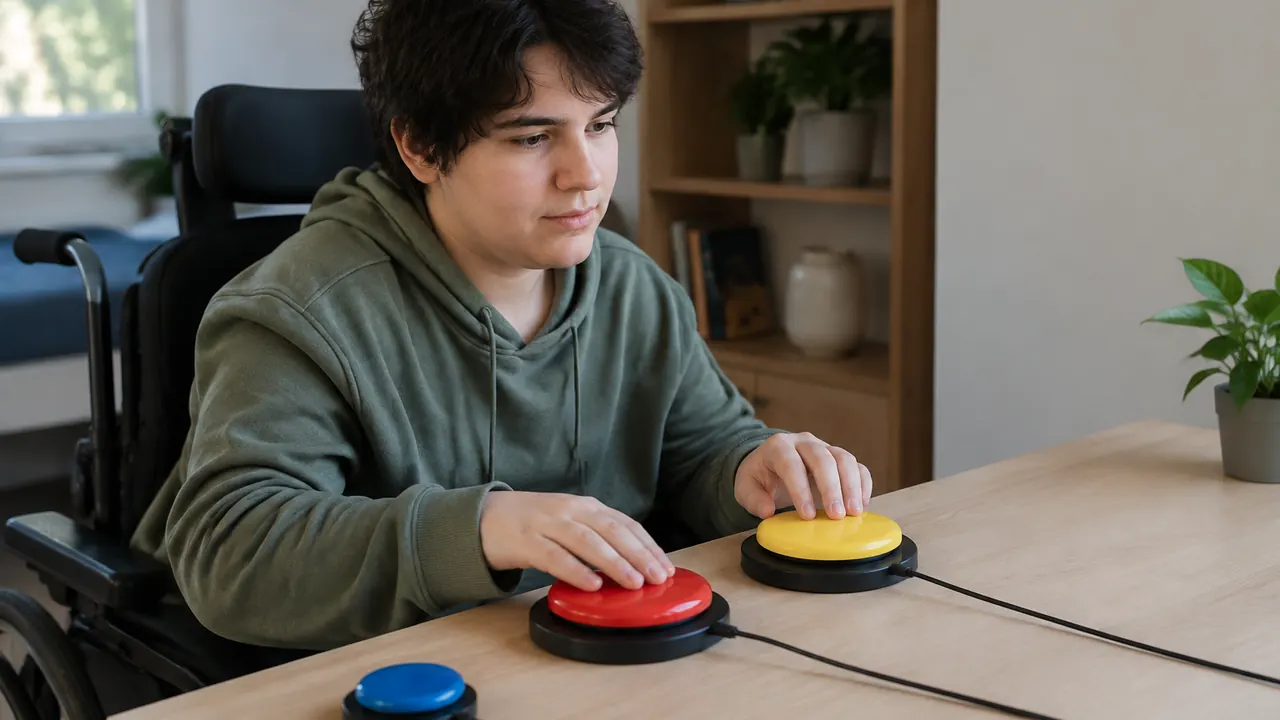
For an adaptive controller, switches or another alternative setup, check the whole chain: device compatibility, platform support and the game’s input behavior. System-level remapping may help, but on-screen prompts might still show the original buttons. You also need to know whether the game accepts simultaneous keyboard and controller input if your setup depends on it. A compatible device alone does not guarantee that every required action is manageable.
- Check for alternatives to repeated tapping, rapid presses, button holds and simultaneous inputs. Confirm those alternatives cover scripted sequences as well as regular play.
- Look for toggle options for aiming, crouching or sprinting, plus separate sensitivity controls and stick dead-zone adjustments where you need them.
- Ask whether timing windows can be extended and whether motion, touchpad, stick-click or gesture actions can be assigned to another input.
3. Inspect subtitle size, readability and coverage
A screenshot saying “subtitles on” reveals very little. Look for adjustable size, an opaque or adjustable background, strong contrast and speaker identification. Then establish what gets captioned. Dialogue subtitles may omit approaching enemies, alarms or other meaningful sounds. Players who need that information should look specifically for sound-effect captions, directional indicators or another equivalent way to receive it.
Judge readability at your actual viewing distance. Text that looks generous in a close-up video may be difficult to read from a couch or on a handheld display. If possible, view menu footage on a screen similar to yours. Check objectives, inventory descriptions, tutorials and button prompts separately: a subtitle-size slider may not enlarge any of them.
Also check whether subtitle preferences are available before the opening cinematic and whether they persist after restarting. Reading speed matters as much as letter size. Can you pause dialogue, advance text yourself or review a conversation log? Does text remain visible long enough during action? Ask whether caption backgrounds obscure essential information, especially when several speakers talk at once. If you need menu narration, investigate its coverage separately; narration and subtitles address different access needs.
4. Look beyond a colorblind mode
A color setting is most useful when it changes the information you need to distinguish. A full-screen filter may alter the picture without making teammates, hazards or puzzle pieces easier to identify. Look for independent adjustments to interface elements and, more importantly, alternatives to color: symbols, labels, patterns, outlines or distinct shapes. Those redundancies can make information clearer without requiring you to identify a particular hue.
Inspect demanding scenes, not just the settings menu. Enemy markers may disappear against a bright landscape, and a thin objective outline may vanish in visual effects. If you need high contrast, ask what receives it and whether the background can be reduced independently. Also check map legends, item rarity, health warnings and multiplayer team identifiers. A game may provide excellent alternatives in combat while leaving a required puzzle dependent on color alone.
Use the questions below to turn a broad visual-accessibility claim into a practical test. Try to find examples from more than one environment, including dark interiors and crowded encounters. Remember that recorded footage can be compressed or color-altered, so it is evidence of available options, not a reliable preview of exactly what you will see.
| Advertised option | What to verify |
|---|---|
| Colorblind mode | Does it change essential markers or mainly filter the scene? |
| Custom interface colors | Can you adjust allies, enemies and objectives separately? |
| High-contrast view | Does it distinguish interactable objects from scenery? |
| Non-color cues | Are symbols, patterns or labels available wherever color matters? |
5. Separate difficulty from specific assist options
An easy difficulty setting can reduce some barriers without addressing others. Lower enemy damage will not necessarily help with a timed platforming sequence, complex navigation or an inaccessible puzzle. Look for options that target the task: aim assistance, adjustable game speed, navigation guidance, puzzle hints, longer timers or alternatives to quick-time events. Check whether these can be combined rather than choosing between fixed presets.
Ask when settings can change. Being able to adjust an encounter after several attempts is different from choosing a mode that locks at the start. Save behavior matters too: frequent checkpoints, manual saves and the ability to suspend a session can reduce the cost of fatigue or interruptions. Verify whether pausing actually stops gameplay, especially in online modes. The word “pause” on a menu does not guarantee that the action stops.
Do not assume an assist works across the entire game. Story and competitive modes may have different restrictions, and some options may affect achievements, rankings or rewards. Those consequences should be clear before purchase if they matter to you. Seek descriptions of what each assist changes, not judgments about whether using it counts as playing properly. The relevant issue is whether it enables the experience you want.
6. Investigate camera motion and visual effects
Motion comfort is personal, and no setting can guarantee that a game will feel comfortable. Research camera shake, head bob, motion blur and automatic camera movement separately. A motion-blur toggle does not establish that camera shake can be disabled. For first-person games, look into field-of-view adjustment and its available range on your platform; do not assume a PC option exists on consoles.
Seek footage of ordinary traversal, fast combat and vehicle sections, where camera behavior can differ sharply. Ask whether settings reduce effects in cutscenes as well as gameplay. If flashing effects are a concern, check the game’s warnings and documentation for dedicated controls, while recognizing that a reduction setting is not a safety guarantee. Consult a qualified clinician about individual medical risks rather than relying on a store label.
- Check whether camera shake and head bob can be fully disabled, rather than only reduced to an unspecified minimum.
- Look for controls over camera acceleration, automatic recentering, lock-on behavior and horizontal and vertical sensitivity.
- Investigate flashes, screen distortion, damage overlays and other effects separately; a general visual-effects setting may not cover all of them.
7. Verify the exact version and your purchase options
Before paying, match your research to the exact platform, edition and current build. Read dated accessibility documentation and patch notes, then compare them with recent hands-on reporting. A review by someone with similar access needs can reveal gaps that a feature list misses, but their experience cannot guarantee yours. Search for the specific barrier, such as “disable camera shake,” rather than only the game’s name plus “accessibility.”
A demo, trial or borrowed copy can help answer unresolved questions, but check how closely it matches the current release. Test the first setup screens, menus and a representative stretch of play. If possible, include your own controller, display and seating distance. Save a note of settings that work. Do not spend the entire test browsing sliders without seeing how they behave during actual play.
Finally, read the seller’s current refund rules before downloading or launching. Eligibility can depend on the store, region, elapsed time, playtime and other conditions; do not assume accessibility problems automatically qualify. If an essential feature remains unverified, waiting for clearer evidence is a reasonable purchase decision. The strongest accessibility claim is one you can connect to a specific need and a demonstrated function.
Caveat: Accessibility features, platform support and refund terms can change; verify current documentation and seller policies before buying.
AI Assistance Used — AI assistance was used in researching and drafting this article. It was reviewed, edited, and fact-checked by Nadia Clarkson before publication.